



- Product Information
- Features
- Specifications
- Technical Information
- Download
- Order
|
TouchRight Utilities
Download TouchRight Utilities TouchRight Utilities Frequently Asked Questions TouchRight Utilities Technical Support View TouchRight Utilities Literature (PDF) View Order Pad TouchRight Utilities User's Guides Current Version User's Guide TouchRight Utilities User's Guide TouchRight Utilities User's Guide (Manual PDF) TouchRight Utilities User's Guide (EBook PDF) TouchRight Utilities User's Guide (US Letter PDF) TouchRight Utilities User's Guide (A4 PDF) IMG Products IMG's Assistive Technology Products IMG's Commercial Products IMG Home Page |
Product Information
TouchRight UtilitiesRight Mouse functions for Touch screen systemsWhats New? Support for Windows 10 / 8.1 / 8 (32 & 64 bit) is now Available! And... Individuals can now license TouchRight Utilities for only $9.95! An easy interface for bringing Right Mouse functions to ANY touch screen or other pointing device interface. Great for users, developers, integrators, field service, or administrators who work with and configure non-mouse or touch screen applications. 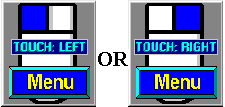
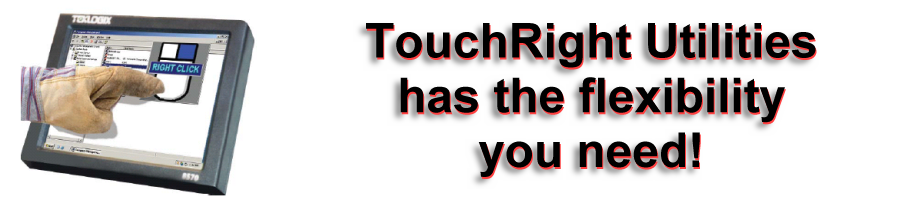
Why do I need this?Most touch screen drivers enable a "touch" or "press" to act as the left button click of a mouse. The act of pointing is very intuitive on a touchscreen, i.e. you point!To interface with windows, the act of "touching" the screen is converted into a left click (as though you used the mouse to point to the button / area) and then "clicked" to select / press button. Since the screen IS the interface, there is no intuitive way to implement a Right-Click (No, you cannot use your other hand!). Sometimes a default press-and-hold approach creates interface issues. However, using the Right-Click can be important when working with systems, so using "TouchRight", you can easily access the system, changing back and forth from Left to Right Click! The window itself can be sized and repositioned anywhere on the screen, can be optionally hidden until needed, and provides various other capabilities as required by customers.
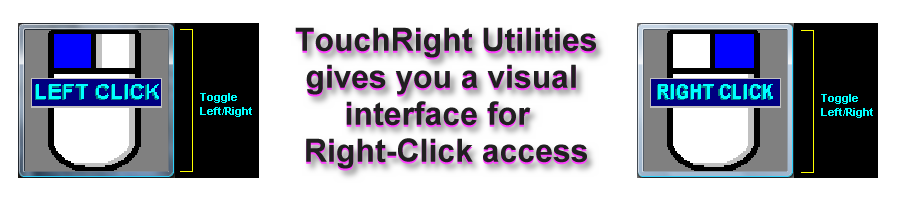
How do I right click?With "TouchRight" a single touch turns your finger into a Right Click instead of a Left. Touch again, and you're back to the Left (or automatically after a single Right-Click).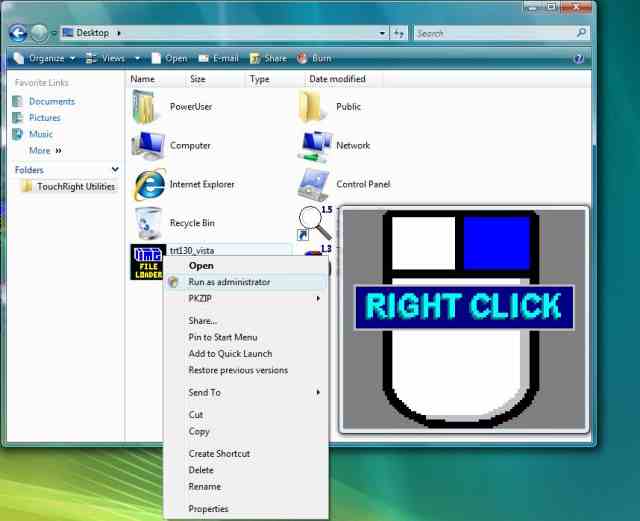
What else do I get?The TouchRight Utilities includes various useful functions:
|
Features
Easy to use and understand approach to access Right-Click functionality from a single click interface
Single-Right click feature - monitors action and reverts immediately back to a left click after a right-click event, or operate in fixed mode until user toggles action
Pre-defined positions, along with complete size and position flexibility
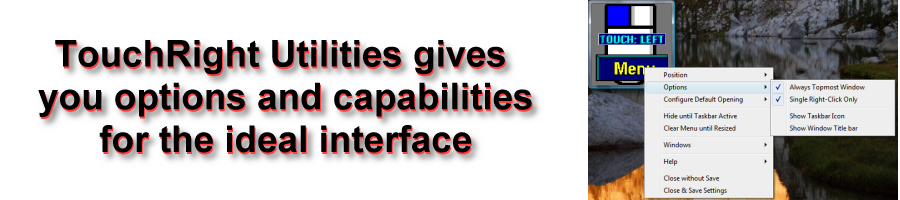
Window and system interface options for ease of use / access
Hide until Taskbar active - easy way to hide, but still quickly access functions
Operator only option
Windows System functions - shutdown, log off, restart
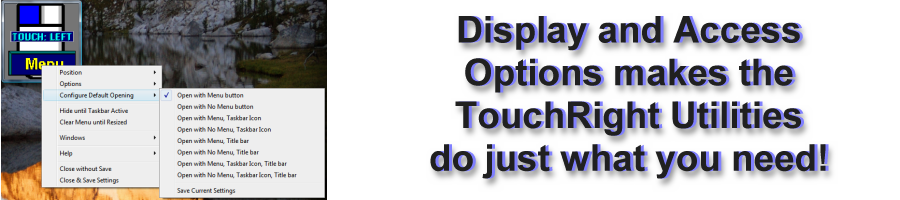
Flexible options to handle configuration and configuration menu
Specifications
TouchRight Utilities software written as standard Windows application- Compatible with all properly written Windows applications
- Developed in C/C++ - written at same level as Windows operating system for maximum capabilities
- Accesses Windows API via standard interfaces/System DLLs - No frameworks or special environment required
- Support for all Windows variations since Windows 95
Technical Information
TouchRight Utilities is a standard Windows Application and does not require any special drivers, and should work with all keyboard and mouse emulation drivers that are compatible with the ones that ship with Microsoft Windows.
Voluntary Product Accessibility Template (VPAT)
Order - TouchRight Utilities
Now... Individuals can license TouchRight Utilities for only $9.95!
- Download the TouchRight Utilities demo and use its Licensing Manager to purchase your license.
TouchRight Utilities Commercial License - Suggested Retail is US $49.95
- Supports: Windows 10 / 8.1 / 8 / 7 / Vista / XP / 2000 / Embedded
- Catalog #: 12101
- Supports: Windows 10 / 8.1 / 8 / 7 / Vista
- Important Note: This is a Limited Support license
- Catalog #: 90001
For OEM, Integrator & Reseller Pricing or EndUser Single, Multi-Site, or Enterprise Licensing
(including Keyless Licensing, Image Ready integration, and Programming Integration Support),
please call 800-889-0987 (+1 818-701-1579) or contact IMG Sales
